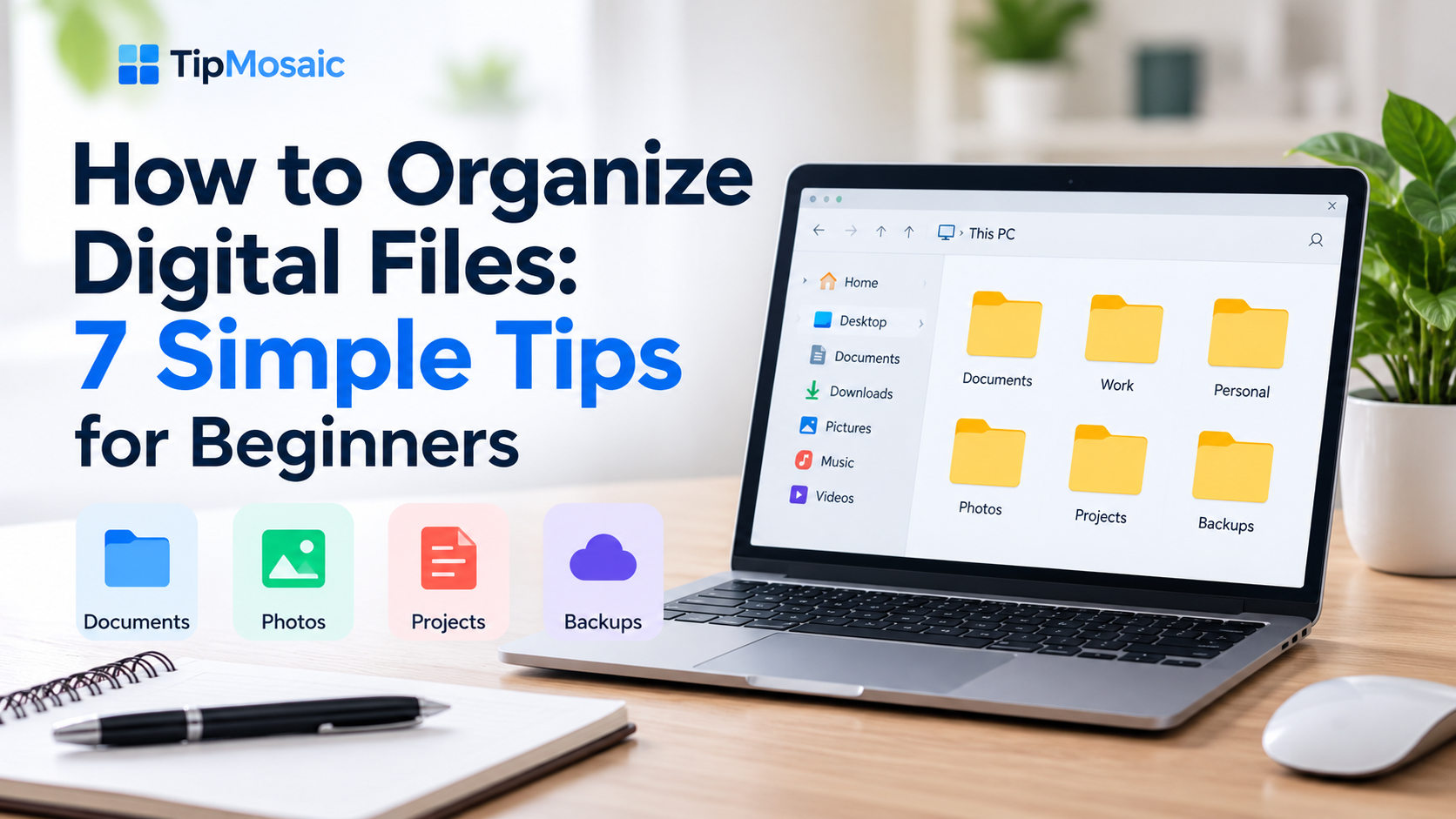
Keeping your digital files organized makes it easier to find what you need, avoid duplicate downloads, and spend less time searching through cluttered folders. Whether you use a Windows PC, a Mac, or cloud storage, a simple file organization system can make everyday tasks much easier.
In this beginner-friendly guide, you’ll learn seven practical ways to organize documents, photos, and downloads. From creating clear folders to naming files consistently and backing up important data, these simple tips will help you build an organized digital workspace.
1. Create a Simple Folder Structure
One of the easiest ways to organize digital files is to create a clear folder structure. Instead of saving everything in one place, divide your files into simple categories such as Documents, Work, Personal, Photos, and Downloads.
For example, you can create a main folder called Work and add subfolders for Projects, Reports, and Invoices. If you have many files, organize them further by year or project name. This makes it easier to find important documents without searching through hundreds of unrelated files.
Quick Tip: Keep your folder structure simple. Avoid creating too many unnecessary subfolders, as this can make files harder to find.
2. Use Clear and Consistent File Names
Clear and consistent file names make it easier to identify documents without opening them. Instead of using generic names like Document1.pdf or IMG_0045.jpg, choose descriptive names such as 2026-10-project-budget.pdf or family-trip-2026.jpg.
A good file name should tell you what the file contains. Whenever possible, include a relevant date, project name, or short description. Using a consistent naming format also makes it easier to search for files and keep them organized.
For example, using the date format YYYY-MM-DD helps files appear in chronological order when sorted by name. You can also use hyphens or underscores to separate words and keep file names easy to read.
Quick Tip: Avoid using forward slashes, backslashes, and colons in file names, as they can cause compatibility problems across different operating systems.
3. Clean Up Your Downloads Folder Regularly
The Downloads folder is one of the easiest places for digital clutter to build up. Over time, downloaded documents, images, installers, and other files can pile up, making it difficult to find what you actually need.
Take a few minutes each week to review your Downloads folder. Move important files into the appropriate folders, delete unnecessary downloads, and remove installation files you no longer need.
For example, if you downloaded an invoice for work, move it into your Work or Finance folder instead of leaving it mixed with unrelated downloads.
Quick Tip: Sort your Downloads folder by date to quickly identify older files that may no longer be useful.
4. Use Cloud Storage to Keep Files Organized
Cloud storage services such as Google Drive, OneDrive, and Dropbox can help you organize important files and access them from different devices.
Instead of storing everything on a single computer, you can create organized folders in your preferred cloud storage service. This makes it easier to access documents when working from home, traveling, or switching between devices.
For example, you could create separate cloud folders for Work Projects, Personal Documents, and Shared Files. Use clear folder names and keep the structure consistent with your computer.
Remember that cloud syncing is not always the same as having a separate backup. Files deleted or changed on one device may also be deleted or changed on connected devices.
Quick Tip: Enable two-factor authentication on your cloud storage account to add an extra layer of protection to your important files.
5. Remove Duplicate and Unnecessary Files
Duplicate files can take up valuable storage space and make your digital workspace harder to manage. It’s common to have several copies of the same photo, document, or downloaded file without realizing it.
Start by reviewing folders where duplicate files are most likely to appear, such as Downloads, Documents, and Photos. Compare file names, sizes, and contents before deciding which copies to keep.
For example, you might find multiple versions of a document named Report-final.pdf, Report-final-2.pdf, and Report-final-new.pdf. Review them carefully, identify the version you need, and remove unnecessary copies.
Be especially careful with important documents and system files. Avoid deleting anything unless you’re confident it is no longer needed.
Quick Tip: Back up important files before performing a large cleanup, and check duplicate files manually before deleting them.
6. Back Up Your Important Files Regularly
Keeping your files organized is helpful, but protecting them from accidental deletion, device failure, or unexpected problems is just as important.
A reliable backup system helps ensure that important documents, personal photos, and work files are not permanently lost if something happens to your computer.
One simple approach is to keep your working files on your computer and maintain separate backup copies using an external drive and a trusted cloud backup service.
For extra protection, consider the 3-2-1 backup approach: keep three copies of important data, use two different types of storage, and store at least one copy in a separate location.
You should also check your backups occasionally to make sure your files can actually be restored.
Quick Tip: Schedule automatic backups whenever possible so that protecting your files becomes part of your regular routine.
7. Make File Organization a Weekly Habit
Organizing your digital files is not something you need to do only once. A simple weekly routine can help prevent clutter from building up again.
Set aside around 10 minutes each week to review your Downloads folder, organize new documents, delete unnecessary files, and check that important data is backed up.
You can also create a habit of saving new files in the correct folders immediately instead of leaving them on your desktop or in random locations.
For example, every Friday you could spend a few minutes sorting work documents, renaming new files, and cleaning up your desktop before finishing the week.
The goal is not to create a perfect system. It’s to build simple habits that make your digital life easier over time.
Quick Tip: Add a recurring reminder to your calendar for a weekly digital cleanup. Small, consistent actions can save you time in the long run.
Final Thoughts: Keep Your Digital Files Organized
Organizing your digital files doesn’t have to be complicated. By creating a simple folder structure, using descriptive file names, cleaning up unnecessary downloads, and backing up important documents, you can build a digital workspace that’s easier to manage.
The key is consistency. Start with one folder, organize your most important files, and gradually develop habits that work for you. Even spending a few minutes each week on digital organization can make a noticeable difference over time.
Remember: A well-organized digital workspace helps you find files faster, reduce clutter, and focus on what matters most.
Frequently Asked Questions (FAQ)
What is the easiest way to organize digital files?
The easiest way is to create a few clearly named folders, such as Work, Personal, Documents, and Photos. Save each file in the appropriate folder and use descriptive file names so you can find it later.
How often should I organize my computer files?
A quick cleanup once a week is a good starting point. Spend around 10 minutes reviewing downloads, organizing new documents, and removing files you no longer need. You can also schedule a more detailed cleanup once a month.
Is cloud storage enough to protect my important files?
Cloud storage is useful for accessing and syncing files across devices, but syncing alone is not a complete backup strategy. Keep separate backup copies of important files and check that you can restore them when needed.